PRACTICAL LETTER PREPARATION
How to prepare a PDF for online mailing.
A PDF is the document to print, not the mailing itself. Check its page size, attachments, readability, signatures, and destination before approving a physical letter.
By Mail On My Behalf · Updated
1. Start with the complete document.
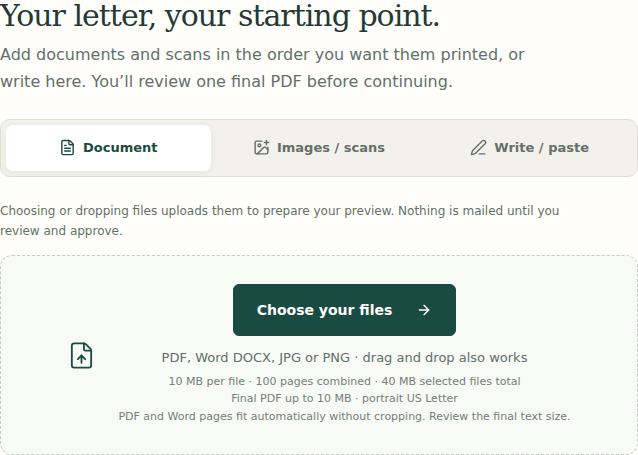
Open your PDF and confirm that it contains your final wording, date, attachments, and any required signature. Keep the original file separately. If the recipient requires an original paper document, an ink signature, or a physical enclosure, printing a PDF may not meet those instructions.
You can upload PDF, Word DOCX, JPG, or PNG files to Mail On My Behalf. The editor also lets you write or paste plain text. Older DOC files, HEIC photos, and other image formats are not supported; export a supported format first.
Choosing or dropping a file uploads it for preparation automatically. Nothing is mailed by selecting a file. Typed text stays in your browser while you edit. For a live order, preparing the print preview sends your text to our server. Read the privacy policy before supplying sensitive material.
2. Check the final US Letter size.
The prepared pages are portrait US Letter, 8.5 × 11 inches. PDF and Word pages with other dimensions are fitted without cropping or stretching. A wide spreadsheet or a large landscape page can become difficult to read when fitted to portrait paper.
For the best control, set US Letter and portrait orientation in your writing app before exporting. If a table is too wide, adjust its columns or split it across pages there. Review the resulting preview instead of assuming that successful conversion means readable printing.
DOCX conversion can change fonts, table positions, and pagination. Check every converted page, especially page breaks and signatures. Password-protected files and documents with unsupported linked content cannot be prepared.
3. Put attachments in their printed order.
Choose multiple files, then use Add more files to extend the selection. Existing files remain selected. Files print from top to bottom: use Move up and Move down to place an attachment after the letter, or Remove to exclude a mistaken selection.
Each uploaded file may be up to 10 MB. Selected source files may total 40 MB, while the combined prepared PDF must be no more than 10 MB and 100 pages. This is a document-preparation limit, not a promise that every mailing service accepts that many pages. Final acceptance depends on the service and supplier.
The progress display separates uploading from preparing pages. Once uploading finishes, a larger document can still take time to prepare. If a file fails, your other selections remain available; retry or remove the unfinished file before making the combined preview.
4. Check scans at their printed size.
JPG and PNG scans fit inside a half-inch page margin without cropping. Rotate a scan to make it upright and adjust its printed size if needed. The preview shows the resulting dimensions and estimated pixels per inch, or PPI.
Our image preparation uses 300 PPI as the preferred resolution and 150 PPI as the minimum at the chosen print size. Making an image smaller can improve its PPI, but may make the text too small. A higher-resolution scan is usually a better solution for a page of small text.
Resolution cannot detect blurry focus, shadows, cut-off text, or unreadable handwriting. Review those yourself. All printing offered here is black and white, so check that colored highlights and faint ink remain understandable.
5. Review the print copy and addresses.
Preparation creates a flattened print copy. A visible signature remains part of that printed image, but original cryptographic signature validity, selectable text, links, accessibility information, and metadata are not preserved. Keep your original signed electronic document if those properties matter.
Review every final page before approving it. One combined document is prepared for one recipient per order. Enter the recipient and return address, including apartment or suite information. Suggestions and format checks do not prove that an address is deliverable.
The mailing quote includes an address cover sheet for envelope-window positioning. You do not need to rearrange your letter to place addresses in those windows. The added cover sheet is separate from the content you preview.
6. Separate preparation from mailing.
For a mailing order, the next steps are your receipt email, a saved-PDF review, the complete price for printing, an envelope, postage and our service, and payment approval. Existing quotes keep their saved amounts. A preview or quote alone does not mail anything.
Payment confirmation, production release, handoff to USPS, and delivery are different stages. Certified Mail adds postal tracking; an electronic return receipt is a further choice for available delivery-signature evidence. A prepared PDF is neither of those records.
Preparation instructions reflect the Mail On My Behalf workflow. Postal service definitions: USPS extra services. We do not determine whether a mailing fulfills a legal requirement or guarantee an arrival date.
Your next step.
Prepare your document, check the printed pages, and confirm the recipient and return address. Review service availability and the price before approving a mailing.
Prepare a letterSee how pricing works · Compare Certified Mail options · Ask a preparation question